
Join the most reactive Vida/Vdash support group on FACEBOOK CLICK HERE
Some time ago a bloke made a program called SET FK Language that helps change the Vida language. It was a bit of a faff to use.
Then he disappeared with all the links to it. Luckily I (and others) kept a copy and have used it to takes things ever further.
Dave from Diaglaptops and I have put together method for adding language files to Vida without the need for the Vida DVD installation files.
Also thanks to Jack for some additional help.
This method allows you to very quickly add and switch between languages.
And on that note, not all information in Vida is available for all languages. Sometimes you have to switch back to en-US (US English) for missing repair procedures and other technical data.
So Why the new method?
The previous methods required using Vida installation DVD files to “Re-install” Vida to add the languages.
This had the following disadvantages :-
1) Very time consuming and slow
2) The old method Would replace the updated Vin support database with the older data base.
3) The install would often not complete and break Vida.
4) Virtual machines users generally do not have the Vida DVD installation files available so could not add languages.
This method, not only makes it really easy to add and switch languages, but will also give you the updated vin support if you didn’t have it before.
Of course for really new P3 cars you will have to use the Vin decoding off method as detailed here :-
Here is basic over view of what needs doing. I will do a very detailed guide below it.
- Stop the Vida SQL service.
- Stop then Exit Vida monitor.
- Download the basedata zip and put the 5 files from within it in to c:\vida\DB, it will prompt to overwrite, say yes.
- Download the language files and put the 35 files into c:\vida\db, it will prompt to overwrite, say no as it will only be the ones that might already exist (Of course, you can just add the language packs you want, you don’t have to do all of them. Note there are 2 files for each language).
- Start the Vida SQL service.
- In c:\vida\db run the “Attach_langauge_files.bat” and wait for it to say its completed.
- Download SetFKLanguage zip and copy the “set_fkLanguage” folder to c:\vida .
- Download the latest patch (doesn’t matter where you put it) and run it (remember its extraction path of c:\ is correct! not c:\vida!!!) .
- Wait for vida monitor to startup and turn green.
- YOUR DONE
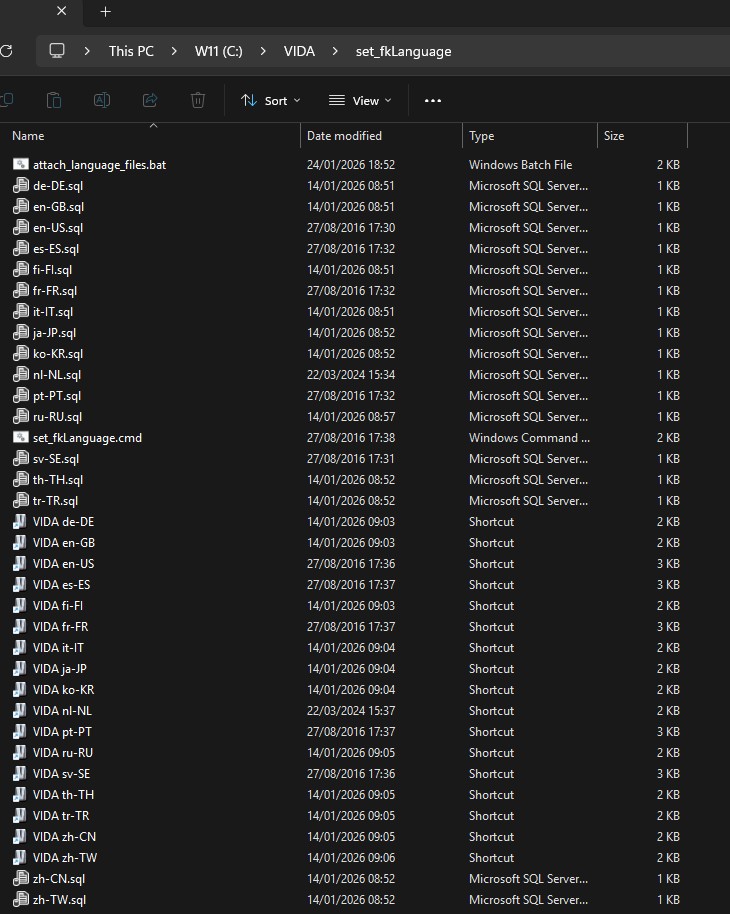
You can now go into the c:\vida\SetFKLanguage folder and double click on the Vida language you wish to activate. You do not need to restart SQL or Vida montor after setting the language, so you can do it “on the fly” so to speak.
For example double click shortcut “VIDA fi-FI” for finish and “VIDA en-US” for the US english
Languages available:
de-DE = German (Deutsche)
en-GB = English (UK)
en-US = English (US)
es-ES = Spanish (Español)
fi-FI = Finnish
fr-FR = French
it-IT = Italian
ja-JP = Japanese
ko-KR = Korean
nl-NL = Dutch (Netherlands)
pt-PT = Portuguese
ru-RU = Russian
sv-SE = Swedish
th-TH = Thai
tr-TR = Turkish
zh-CN = Mandarin Chinese
zh-TW = Taiwanese
Now to the detailed guide with pictures!
You will need these 4 files. Download them.
- SetFK Language (set_fkLanguagev3.zip)
- New Vida patch (VOLVO VIDA 2014D Patch 213064bit.exe)
- New Base Data (Vida2014d_2015A_BaseData_Datav3)
- Language Files (Language files for new method.zip)
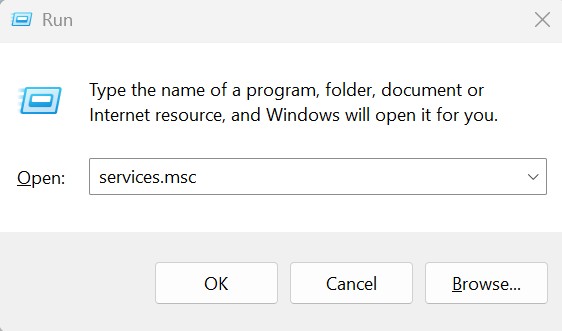
Stop the Vida SQL service. To do this you , press the windows flag on your keyboard and press R at the same time to get the “Run” Dialogue box up. Into the box type services.msc then clock ok Stop the Vida SQL service. To do this you , press the windows flag on your keyboard and press R at the same time to get the “Run” Dialogue box up. Into the box type services.msc then click OK.
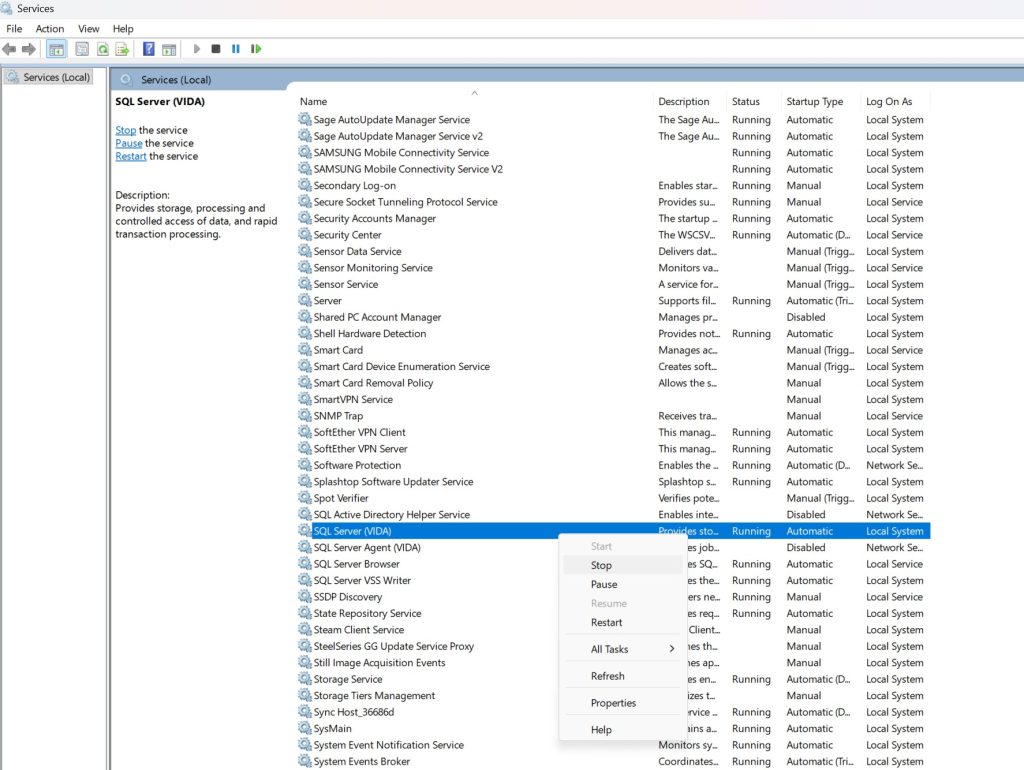
Then when the services windows comes up, scroll down to SQL server (Vida), right click and choose stop. Then minimise the window, we will need again it later to start the service!
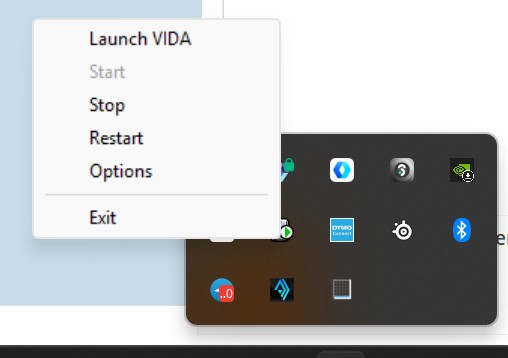
Find Vida monitor down by your clock, Right click it, then choose stop, then choose Exit.
Download the basedata zip (if you haven’t already) and put the 5 files from within it in to c:\vida\DB, it will prompt to overwrite, say yes.
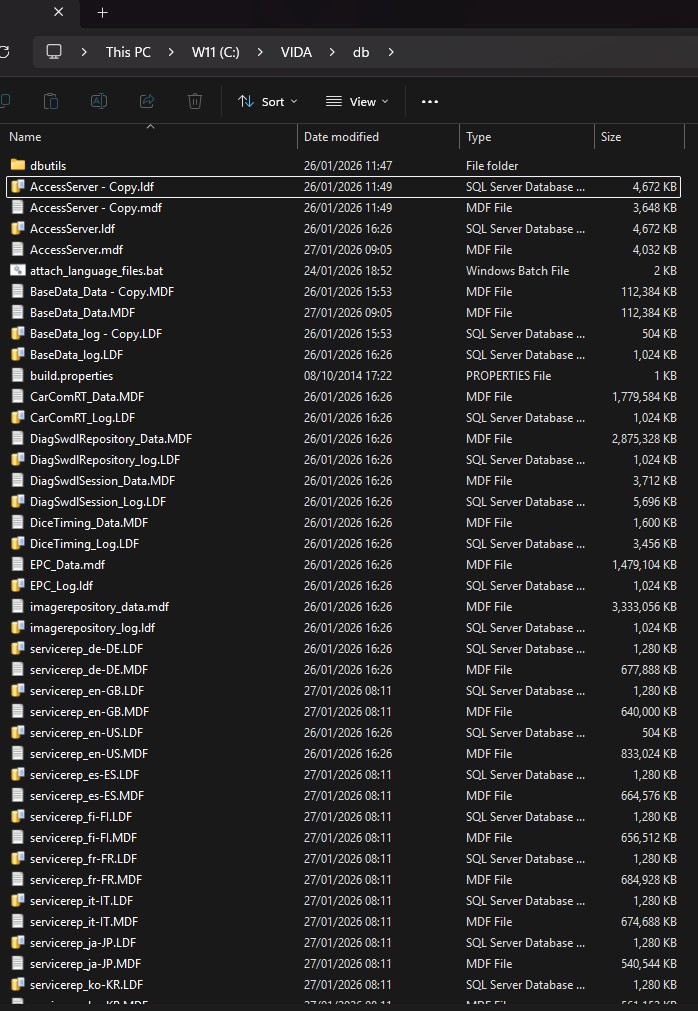
Download the language files (if you haven’t already) and put the 35 files within it into c:\vida\db, it will prompt to overwrite, say no as it will only be the ones that might already exist (Of course, you can just add the language packs you want, you don’t have to do all of them . Note there are 2 files for each language).
If you do all of the language files your DB folder will look alot like this :-
Next, start the Vida SQL service by bringing back up the services window from before and right clicking on the SQL server (Vida) entry and left clicking on start.
Now go to c:\vida\db run the “Attach_langauge_files.bat” by double LEFT clicking and wait for it to say its completed.
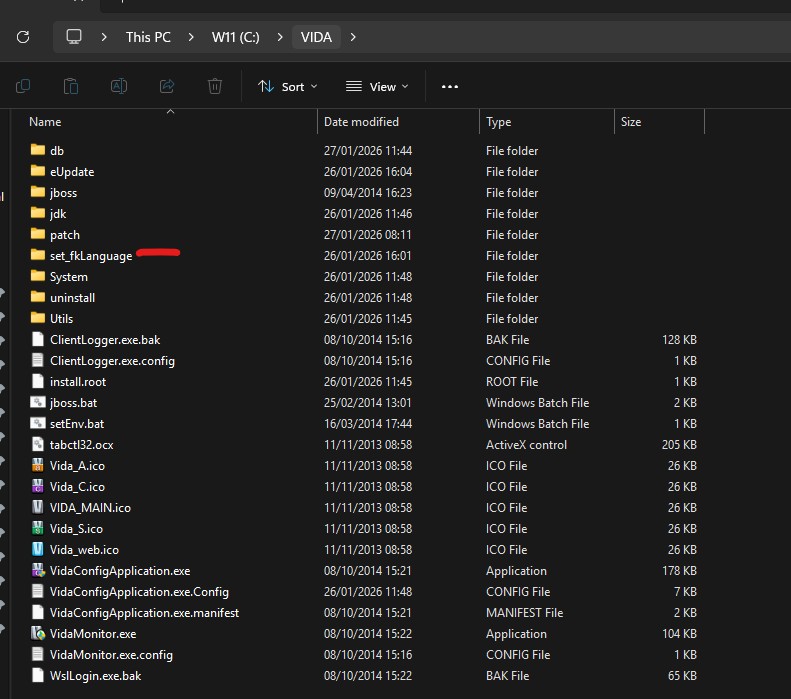
Download SetFKLanguage.zip (if you haven’t already) and copy the “set_fkLanguage” folder to c:\vida so it looks like this :-
And make sure the contents of set_fkLangauge looks like this :-
Download the latest patch (if you haven’t already) , it does not matter where you put it and run it (remember its extraction path of C:\ is correct! not c:\vida!!!)
Wait for vida monitor to startup and turn green.
YOUR DONE
—
GOOD LUCK! AND ENJOY!
Do you have a spam issue on this blog; I also am a blogger, and I was wondering your
situation; many of us have developed some nice practices
and we are looking to swap techniques with other folks,
be sure to shoot me an e-mail if interested. https://prostata-hifu.mystrikingly.com/
Thanks very nice blog! https://endoscopes.mystrikingly.com/